Drawing Mode
Drawing Mode is the core feature of T-Sketch — a unified drawing system with three brush engines in one mode. Press D to switch to Drawing Mode.
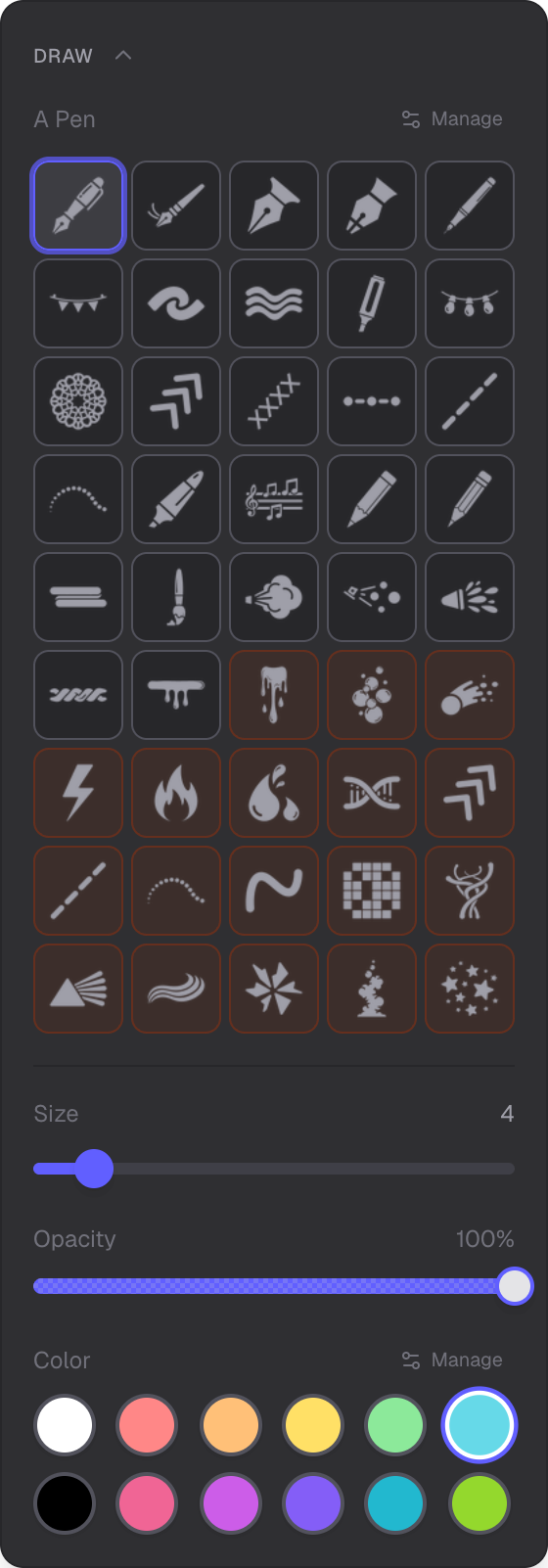
Raster brushes, vector effects, ink brushes, and color controls
Three Brush Engines
Drawing Mode combines three brush systems. Each stroke uses one engine based on the brush you select.
1. Raster Brushes
- Pen — pressure-sensitive strokes with tapered ends
- Spray Painter — airbrush effect with soft edges
2. Vector Effects
13 effect types, most support color customization. Fire uses an internal gradient.
- Fire
- Glow
- Smoke
- Comet
- Volumetric
- Electric
- Bubbles
- Neon
- Glitch
- Stars
- Shatter
- Fluid
- Helix
3. Ink Brushes
About 19 brushes with pressure sensitivity and resolution-independent rendering:
- Marker
- Pressure Pen
- Highlighter
- Calligraphy
- Pencil
- And more
Controls
- Size slider — adjust brush size
- Opacity slider — control stroke transparency
- Color picker — set stroke color
Palette Shortcuts
Press keys 1 through 7 to quickly select palette colors.
Brush Size Keys
[ decreases brush size, ] increases brush size.
Constrained Drawing
Hold Shift while drawing to constrain strokes to horizontal or vertical lines.
Magic Stroke
Hold the pen still for 1 second at the end of a stroke. A quick-create menu appears with options: Shape, Line, Text, Symbol, Image, or Cancel. Use this to convert a stroke into another object type.
Vector Only Mode
When zoomed out significantly, raster brushes are disabled automatically. A badge appears to indicate Vector Only Mode. At very low zoom levels, only vector effects and ink brushes work. This keeps strokes crisp at any zoom.
Per-Brush Settings
Each brush remembers its own size, opacity, and color independently. Switching between brushes restores the last settings for that brush.
Related
- Overview Mode — navigate and manage the scene
- Selection Mode — select and edit objects
- Shapes Mode — create shapes with the same brush engines