Team Settings
Team Settings let administrators manage team details, members, projects, and billing. Open it by clicking your avatar, then selecting Manage Team next to the team you want to configure.
If you belong to multiple teams, a team selector in the dialog header lets you switch between them without closing the dialog.
General
The General tab lets you update core team information:
- Team Name — the display name shown to all members
- Description — a short summary of what the team does (up to 500 characters)
- Team Avatar — a generated avatar based on the team name and ID
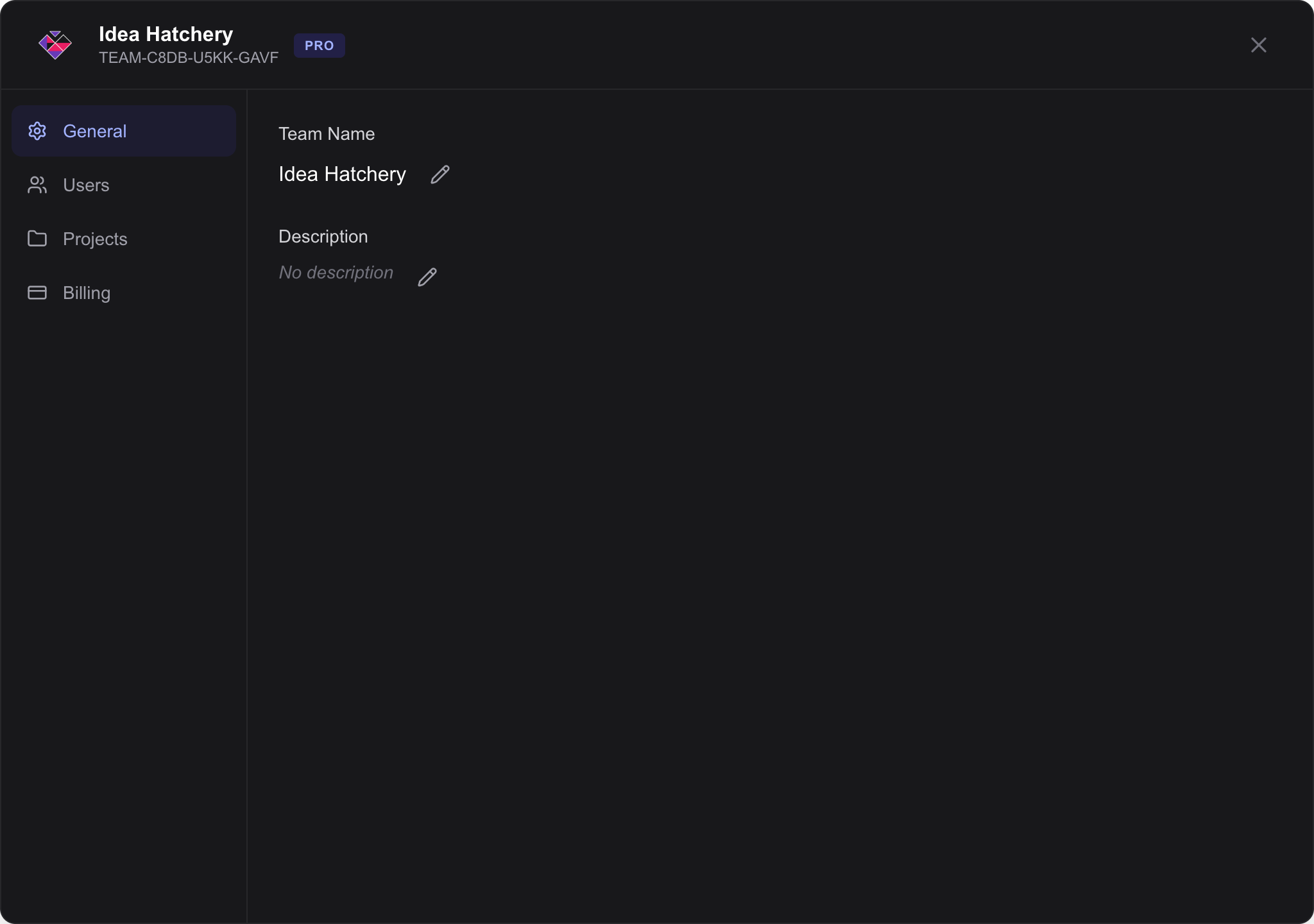
Team name, description, and avatar
Users
The Users tab shows everyone on the team and lets you manage access:
- Members list — see each member's name, email, role, and join date
- Roles — Owner, Admin, or Member. Admins can manage settings, members, and billing. Members can access projects and collaborate
- Invite — send email invitations to new members with a chosen role
- Pending invitations — view outstanding invitations, copy invite links, or revoke them
On Pro plans, the seat usage indicator at the top shows how many seats are in use versus how many are available.
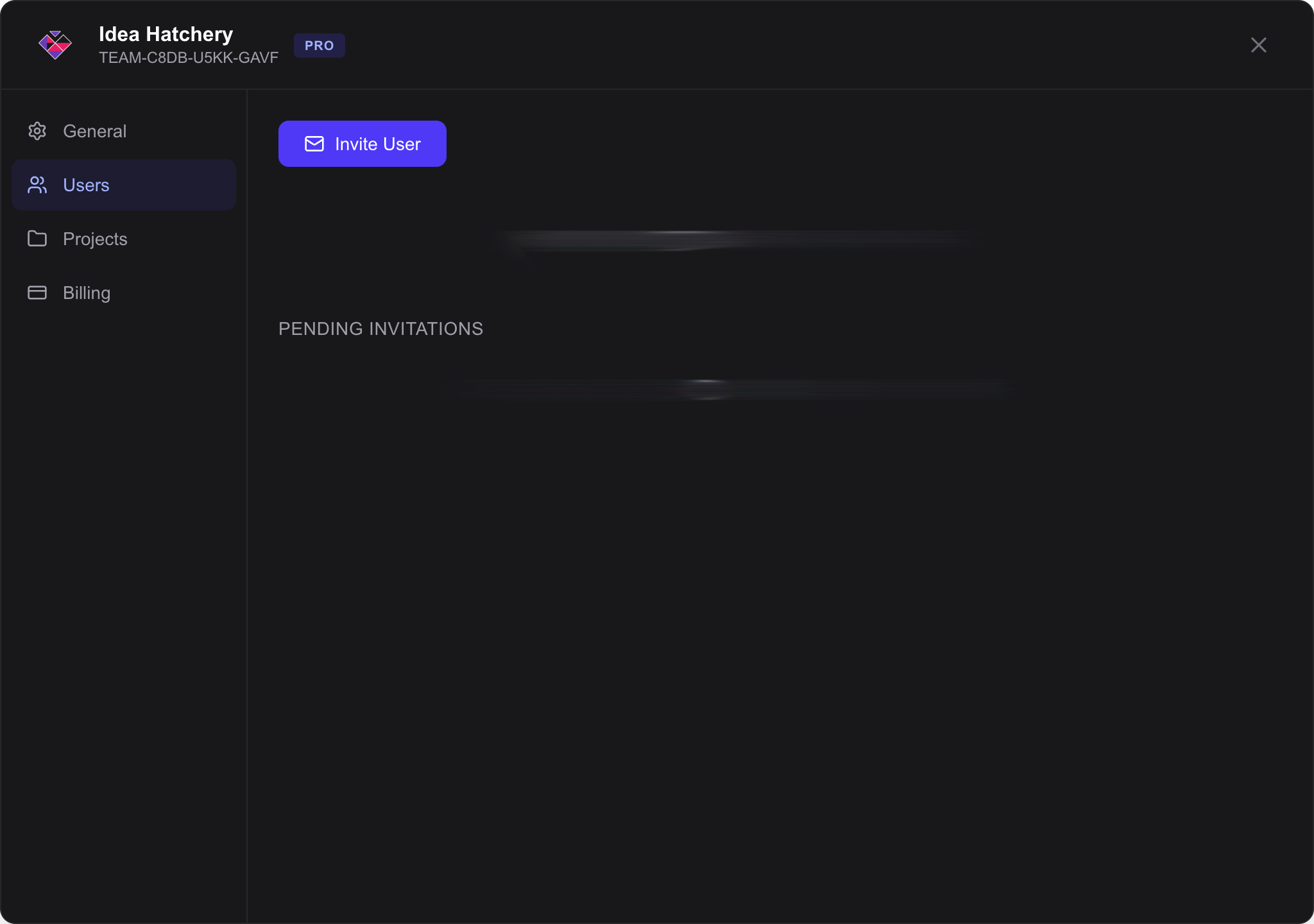
Team members, roles, and invitations
Projects
The Projects tab lists all projects belonging to the team:
- Create — add a new project with a name
- Rename — update an existing project's name
- Delete — permanently remove a project and all its sketches
Each project shows its sketch count and creation date.
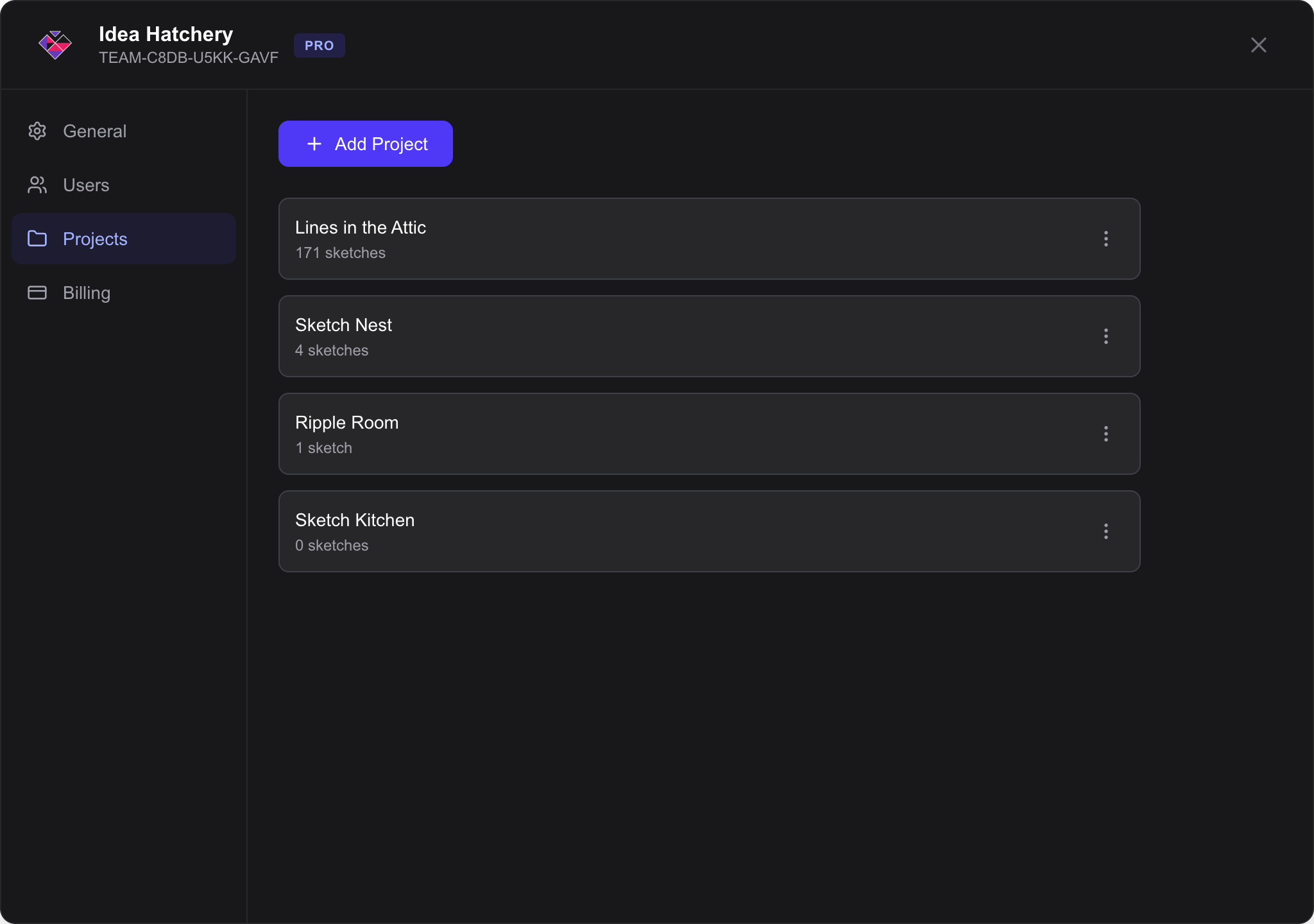
View, create, rename, and delete team projects
Billing
The Billing tab shows your current plan and usage:
- Plan — Free or Pro, with details on limits (projects, sketches, collaborators per sketch, team members)
- Usage — current project and sketch counts relative to your plan limits
- Seats — on Pro plans, view purchased seats and how many are occupied
- Upgrade — switch from Free to Pro with monthly or annual billing
- Billing details — update billing email, address, and tax ID
- Stripe Customer Portal — manage payment methods, view invoices, and cancel or modify your subscription
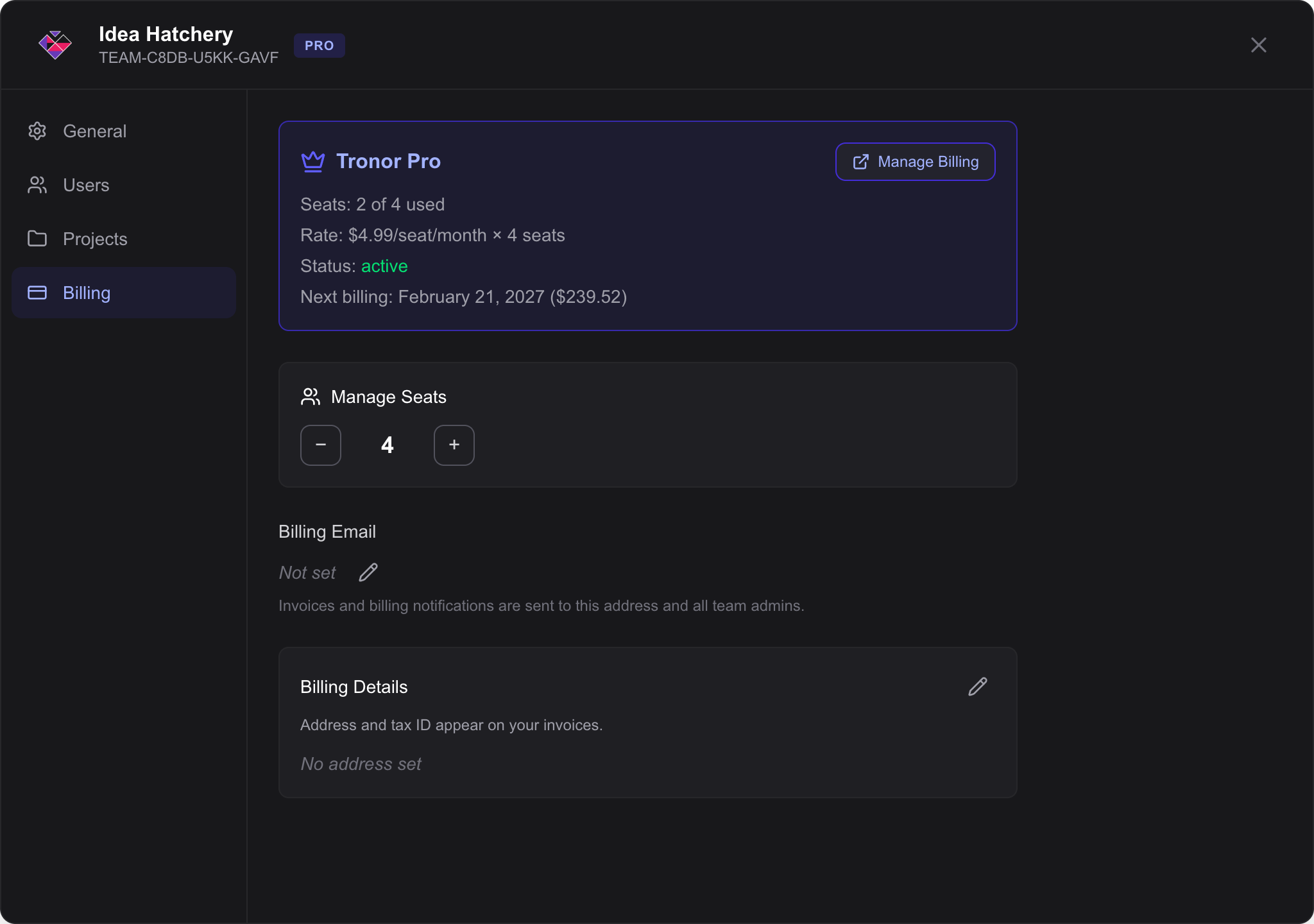
Plan details, usage, seats, and subscription management
Delete Team
At the bottom of the General tab, administrators can find a Danger Zone section to permanently delete the team.
Teams with an active Pro subscription cannot be deleted until the subscription is cancelled. If a subscription is active, the delete button is disabled and a message explains the prerequisite.
When you click Delete this team, a confirmation dialog asks you to acknowledge that the action is permanent. After confirming, the team is marked for deletion and all members lose access immediately. A confirmation email is sent to all team administrators.
Deleted teams are retained for a limited period in accordance with our Privacy Policy before all projects, sketches, and collaboration links are permanently removed.
Related
- User Settings — manage your personal profile and appearance
- Collaboration — real-time collaboration features