Install the App
T-Sketch is a Progressive Web App (PWA). You can install it directly from your browser and use it like a native desktop or mobile app — no app store needed.
What is a PWA?
A Progressive Web App is a website that can be installed on your device and behaves like a traditional app. Once installed, T-Sketch launches in its own window, has its own icon, and stays up to date automatically. There is nothing extra to download — the browser handles everything.
Why install?
You can always use T-Sketch in a regular browser tab, but installing it gives you a better experience:
- Own window — no browser toolbar, tabs, or address bar cluttering your workspace
- Taskbar / Dock / Home Screen — launch it the same way you launch any other app
- OS app search — find it via Spotlight on macOS, Start menu on Windows, or app search on mobile
- Faster startup — the app loads faster because assets are cached locally
- App switching — it appears as a separate app in your OS task switcher
Installation by Browser
The exact steps depend on which browser and operating system you use. Find your setup below.
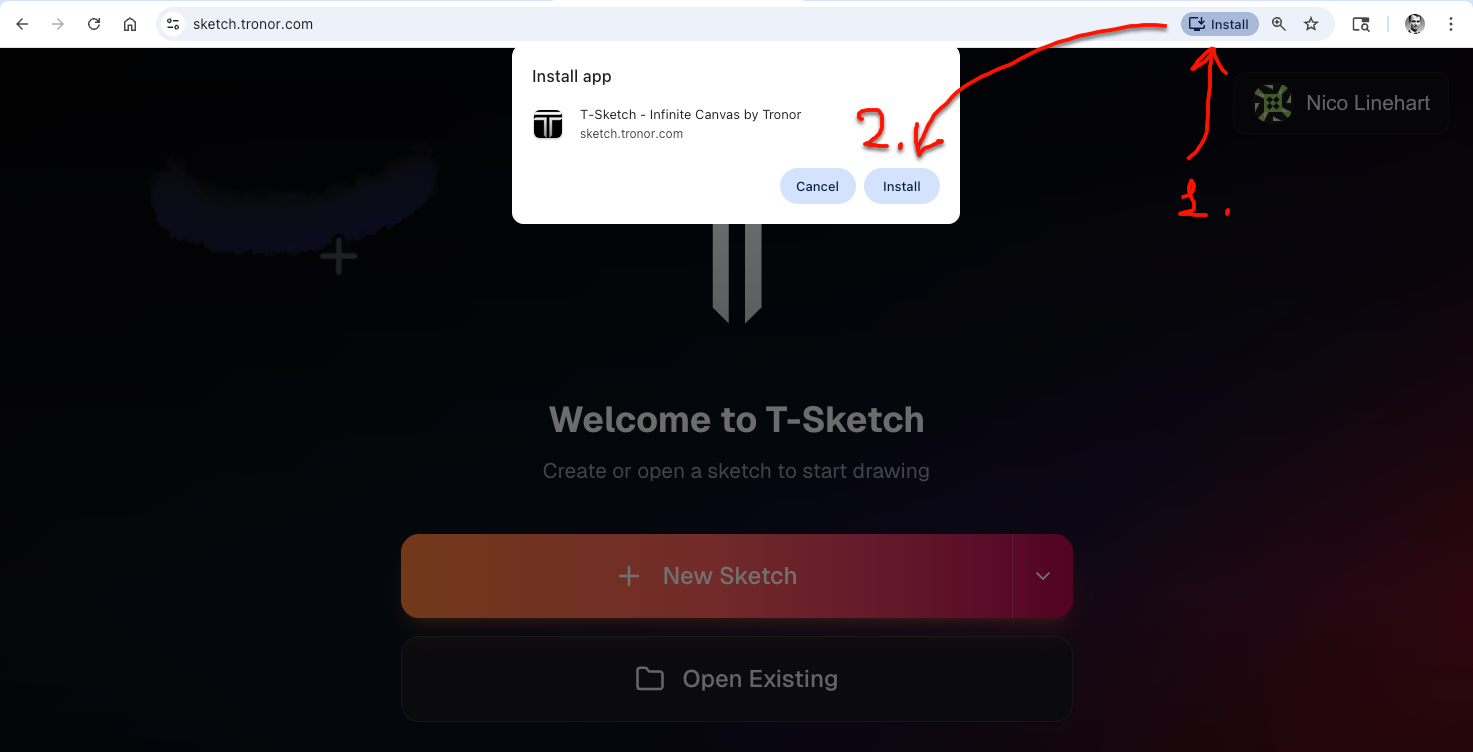
Google Chrome — Desktop
Works on Windows, macOS, Linux, and ChromeOS.
- Open T-Sketch in Chrome.
- Look for the install icon in the right side of the address bar. It looks like a monitor with a small down arrow.
- Click it and confirm by clicking “Install” in the dialog that appears.
- Alternatively, click the three-dot menu (⋮) at the top-right of Chrome, then choose “Install T-Sketch” or “Cast, save, and share” > “Install page as app”.
Microsoft Edge — Desktop
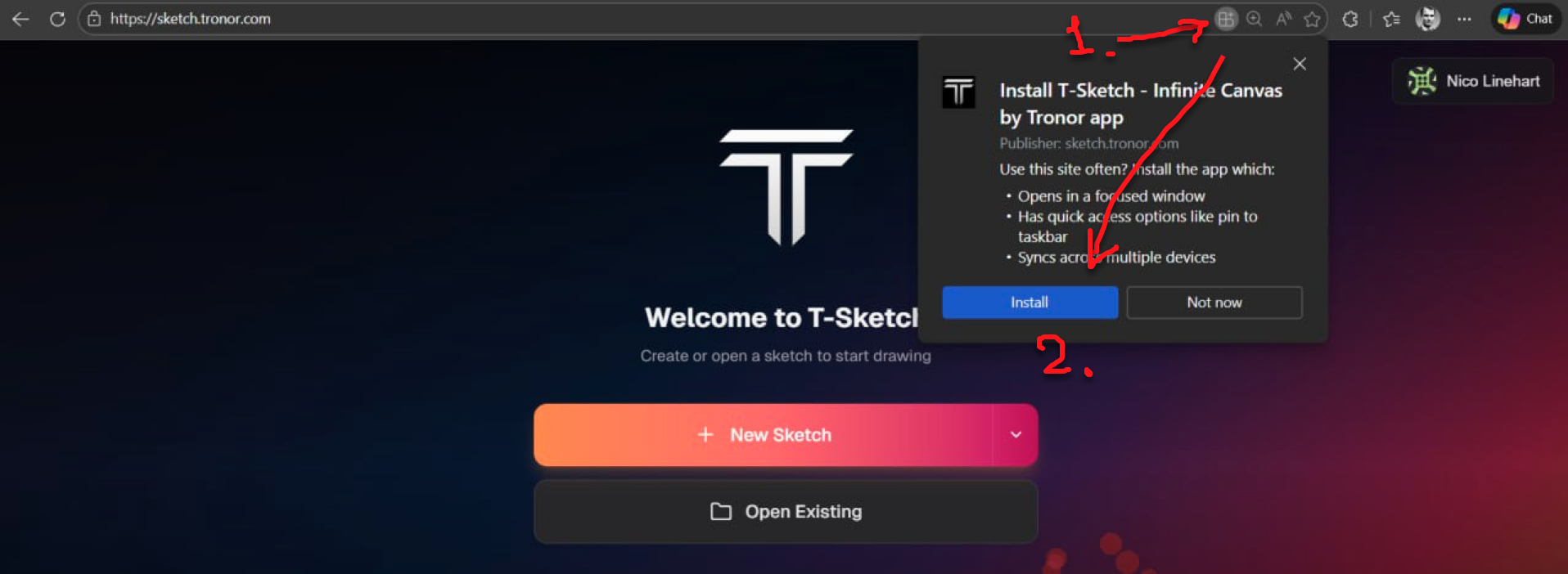
Works on Windows, macOS, and Linux.
- Open T-Sketch in Edge.
- Look for the install icon in the address bar (a monitor with a plus sign).
- Click it and confirm by clicking “Install”.
- Alternatively, click the three-dot menu (⋯), then “Apps” > “Install T-Sketch”.
Safari — macOS
Requires macOS Sonoma 14 or later.
- Open T-Sketch in Safari.
- From the menu bar, click File > “Add to Dock”.
- Confirm the name and click “Add”.
- The app icon will appear in your Dock. Click it to launch T-Sketch in its own window.
Safari — iOS and iPadOS
- Open T-Sketch in Safari on your iPhone or iPad.
- Tap the Share button (the square with an upward arrow) at the bottom of the screen (iPhone) or in the toolbar (iPad).
- Scroll down and tap “Add to Home Screen”.
- Confirm the name and tap “Add”.
- The app icon will appear on your Home Screen. Tap it to launch T-Sketch in fullscreen mode.
Chrome — Android
- Open T-Sketch in Chrome on your Android device.
- Chrome may show an “Install app” banner at the bottom of the screen. If it does, tap “Install”.
- If no banner appears, tap the three-dot menu (⋮) at the top-right, then tap “Install app” or “Add to Home screen”.
- Confirm and the app will be added to your Home Screen and app drawer.
Firefox — Android
- Open T-Sketch in Firefox on your Android device.
- Tap the three-dot menu (⋮) at the top-right.
- Tap “Install”.
- The app will be added to your Home Screen and can be launched from there.
Uninstalling
If you want to remove the installed app:
- Windows — right-click the app icon in the Start menu or taskbar and choose “Uninstall”. You can also uninstall from Settings > Apps.
- macOS — drag the icon from the Dock to the Trash, or right-click and choose “Remove from Dock”. For Chrome-installed PWAs, open
chrome://apps, right-click the app, and choose “Remove from Chrome”. - Linux / ChromeOS — right-click the app icon and choose “Uninstall”.
- iOS / iPadOS — long-press the app icon on your Home Screen, then tap “Remove App” or “Delete Bookmark”.
- Android — long-press the app icon and drag it to “Uninstall”, or go to Settings > Apps and uninstall from there.
Troubleshooting
I don't see the install button
- Make sure you are using a supported browser and it is up to date.
- If you have already installed the app, the install button will not appear again. Look for T-Sketch in your applications.
- Some browsers require you to visit the site a few times before offering the install prompt.
The app opens in a browser tab instead of its own window
- You may have opened a regular bookmark instead of the installed app. Look for T-Sketch in your OS app launcher (Start menu, Dock, Home Screen) and launch it from there.
- On macOS with Safari, make sure you used File > “Add to Dock” and not just a regular bookmark.
The app does not update
- PWAs update automatically in the background. If you notice the app is outdated, close it completely and reopen it. The update will apply on the next launch.