Selection Mode
Selection Mode lets you select, move, resize, and rotate objects on the canvas. Press V to switch to Selection Mode.
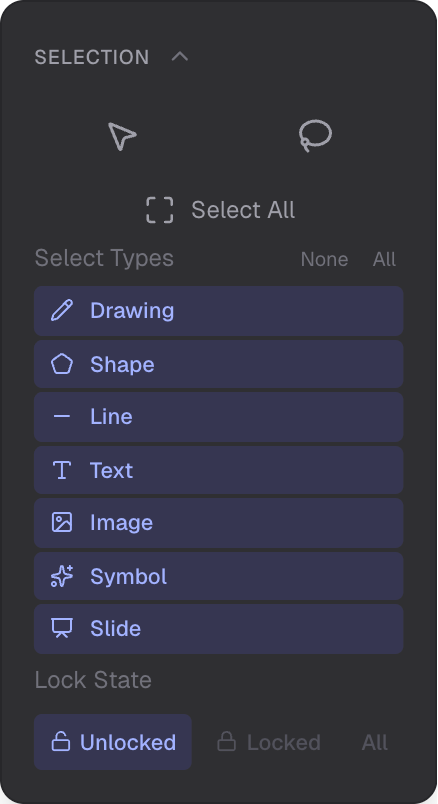
Type filtering, lock filtering, and selection actions
Selecting Objects
Click any object to select it. When you click an object, T-Sketch auto-switches to the appropriate editing mode for that object type.
Rectangle Selection
Drag on empty space to create a selection rectangle. All objects inside the rectangle are added to the selection.
Lasso Selection
Press Shift+L to enter lasso mode. Draw a freeform shape to define the selection area. Objects inside the shape are selected.
Multi-Select
Hold Shift and click objects to add or remove them from the selection.
Group Transform Gizmos
When multiple objects are selected, transform gizmos appear:
- Resize corners — drag corner handles to resize the selection
- Rotation handle — drag to rotate all selected objects
Type Filtering
Choose which object types can be selected: Drawing, Shape, Line, Text, Image, Symbol, or Slide. This helps when working in dense areas.
Lock State Filtering
Filter selection by lock state: select only unlocked objects, only locked objects, or all objects.
Selection Outline
Selected objects show a GPU-accelerated orange outline effect. The outline is visible at any zoom level.
Nudge
Use arrow keys to move the selection: Arrow keys move 1 unit, Shift+Arrow moves 10 units.
Object Locking
Lock objects to prevent position, size, and rotation changes. Visual attributes (color, opacity, etc.) stay editable. Locked objects can still be selected depending on your lock state filter.
Related
- Overview Mode — navigate and manage the scene
- Drawing Mode — draw with brushes
- Shapes Mode — create shapes