Text Mode
Text Mode provides a rich text editor powered by TipTap. Press T to switch to Text Mode.
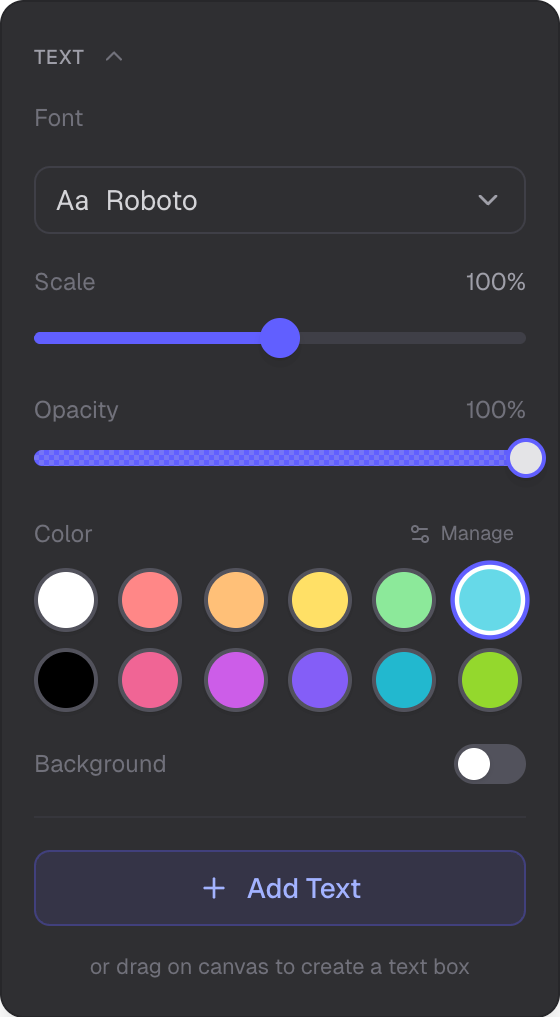
Font selection, formatting, and styling presets
Formatting
- Bold
- Italic
- Underline
- Bullet Lists
- Numbered Lists
Fonts
20 built-in fonts are available for text styling.
Text Styling
- Background color
- Border — solid or dashed
- Corner radius
- Opacity — transparency
Styling Presets
- Ghost — transparent background, no border
- Outline — border only, transparent fill
- Glass — semi-transparent
Rendering
Text objects render as GPU-accelerated textures for correct z-ordering with other canvas objects.
Creating and Editing
Click the canvas to create a new text object. Click an existing text object to edit it.
Attachment Images
Text supports attachment images within the content. Add images inline with your text.
Related
- Overview Mode — navigate and manage the scene
- Selection Mode — select and edit text
- Drawing Mode — freehand drawing
- Image Mode — add images to the canvas