User Settings
User Settings let you manage your personal profile, language, appearance, stylus pressure, memory controls, and active sessions. Open it by clicking your avatar in the top-right corner and selecting User Settings.
The dialog has five tabs: Profile, Appearance, Pressure, Memory, and Sessions.
Profile
The Profile tab shows your account information:
- Email — your sign-in email address (read-only)
- User ID — your unique account identifier
- Display Name — the name shown to collaborators. Click the pencil icon to edit it
- Language — the interface language. Choose from supported locales or leave it on Default to follow your browser language. Click the pencil icon to change it
- First Sign-In and Last Sign-In — timestamps, IP addresses, and browser information for your earliest and most recent logins
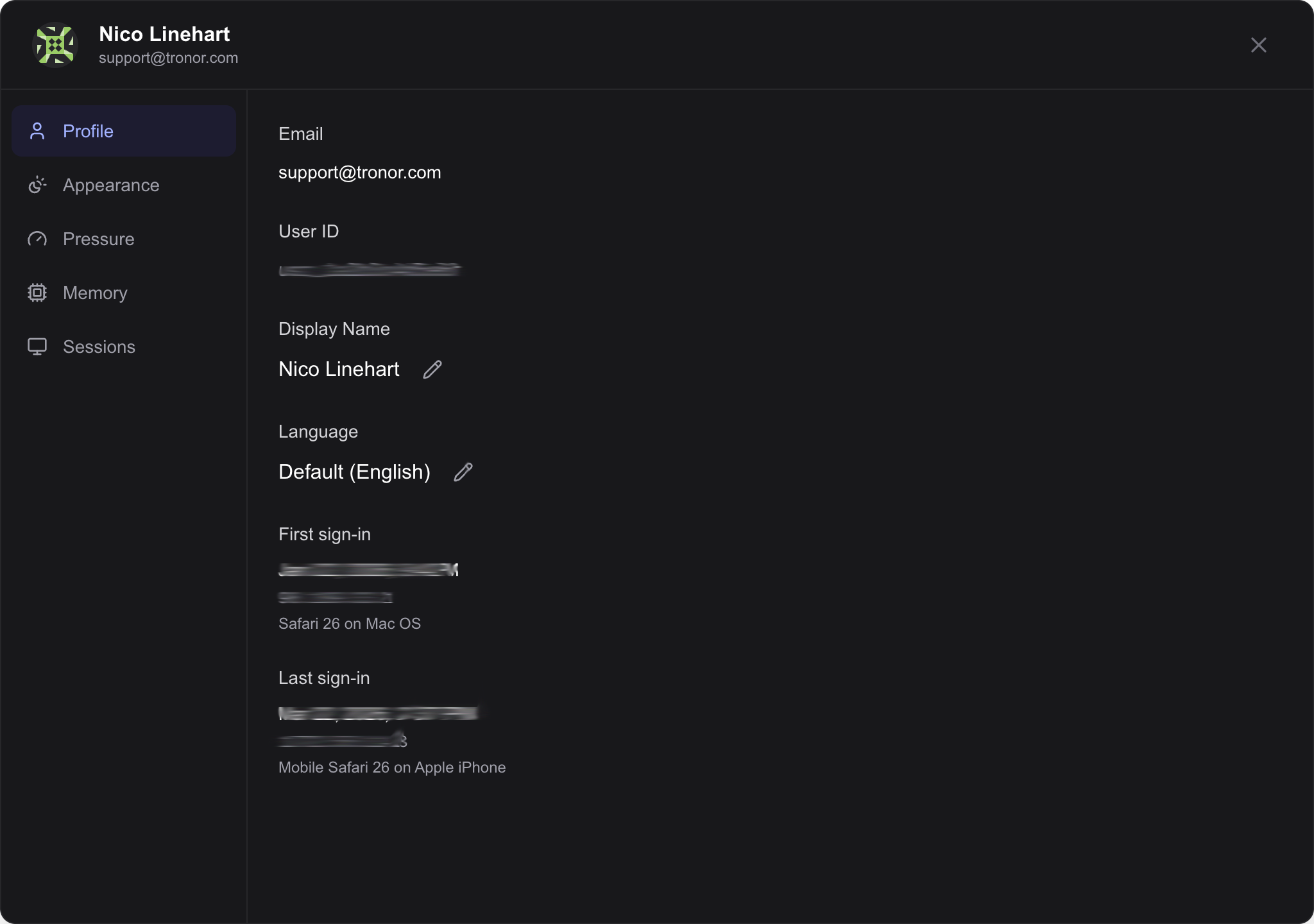
View your email, user ID, display name, language, and sign-in history
Appearance
The Appearance tab controls the overall UI theme. This setting applies to the application interface (toolbar, panels, menus) — it does not affect your canvas content.
- Auto (default) — the interface automatically adapts based on your canvas background color. Dark backgrounds trigger dark mode, light backgrounds trigger light mode
- Light — always use the light theme regardless of the canvas
- Dark — always use the dark theme regardless of the canvas
Below the theme picker, the UI Scale control adjusts the size of all interface elements. Choose from 50%, 80%, 100%, 120%, or 150%. This is helpful on high-resolution displays or when you want larger touch targets on a tablet.
The same appearance setting is also accessible from the Scene panel in Scene.
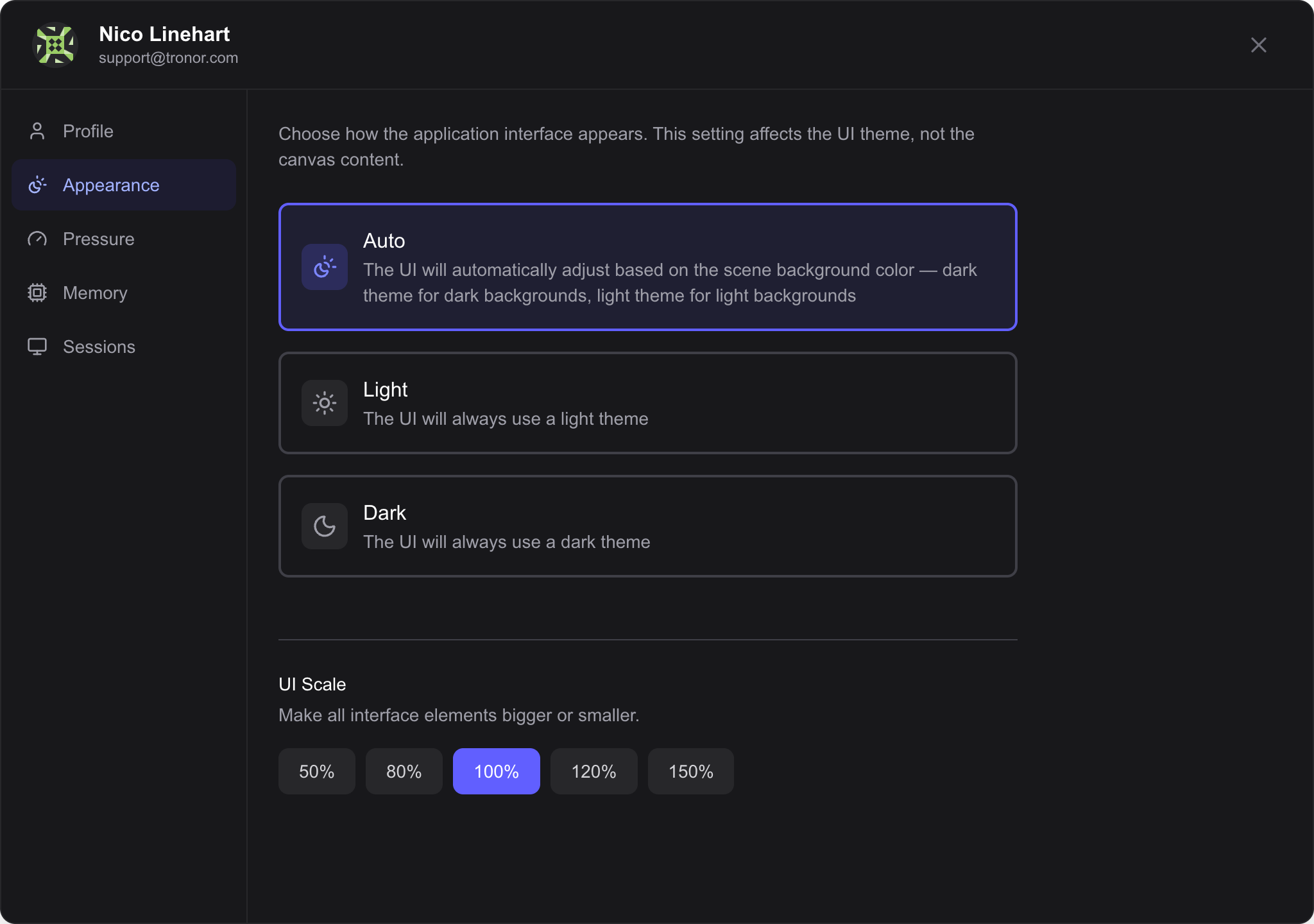
Choose Auto, Light, or Dark theme and adjust UI scale
Pressure
The Pressure tab configures how your stylus pressure translates into brush thickness. A pressure curve preset determines the mapping between physical pressure and visual stroke weight.
- Auto — detects your device and applies a suitable default
- Light — less force is needed for full thickness (good for soft-touch styluses)
- Medium — balanced curve for most styluses
- Linear — direct one-to-one mapping between pressure and thickness
- Firm — more force is required (good for styluses with stiff nibs)
Below the preset selector, a Pressure Test Area lets you draw test strokes to feel how the curve affects your stylus input before committing to a preset.
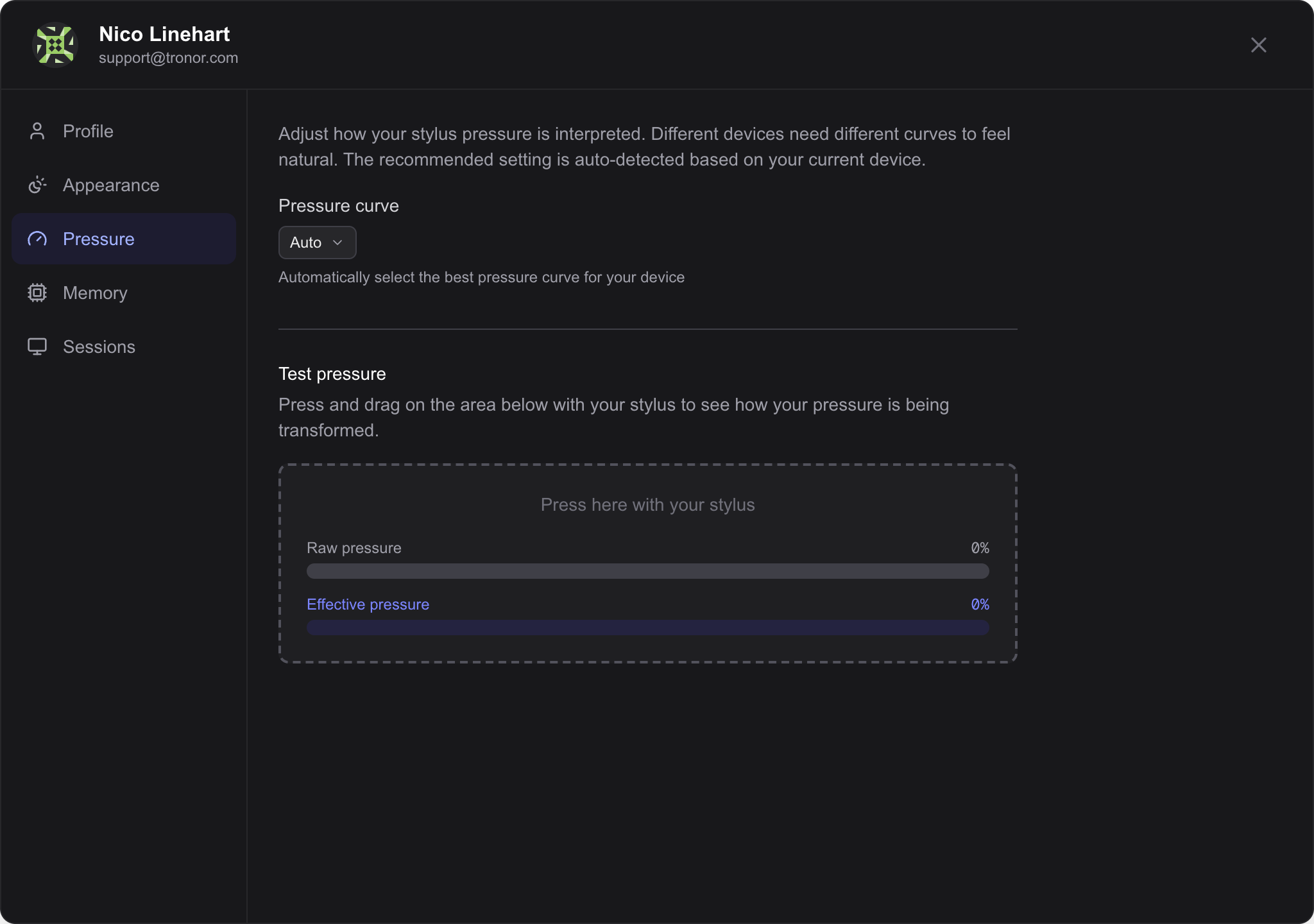
Choose a pressure curve preset and test stylus input
Memory
The Memory tab provides lightweight controls for how the application uses device memory. These are the same controls available in the full Memory Management dialog, without the live usage breakdown.
- Rendering Quality — limits the maximum rendering resolution tier. Lower values reduce memory usage at the cost of visual sharpness. Auto adjusts automatically based on available memory
- Memory Budget — sets a hard cap on how much memory the application may use. Auto detects your device capabilities and applies a suitable limit. Fixed options range from 512 MB to 4 GB
For a detailed per-category memory breakdown and live monitoring, open the full Memory Management dialog from the help menu (?) at the bottom right of the screen.
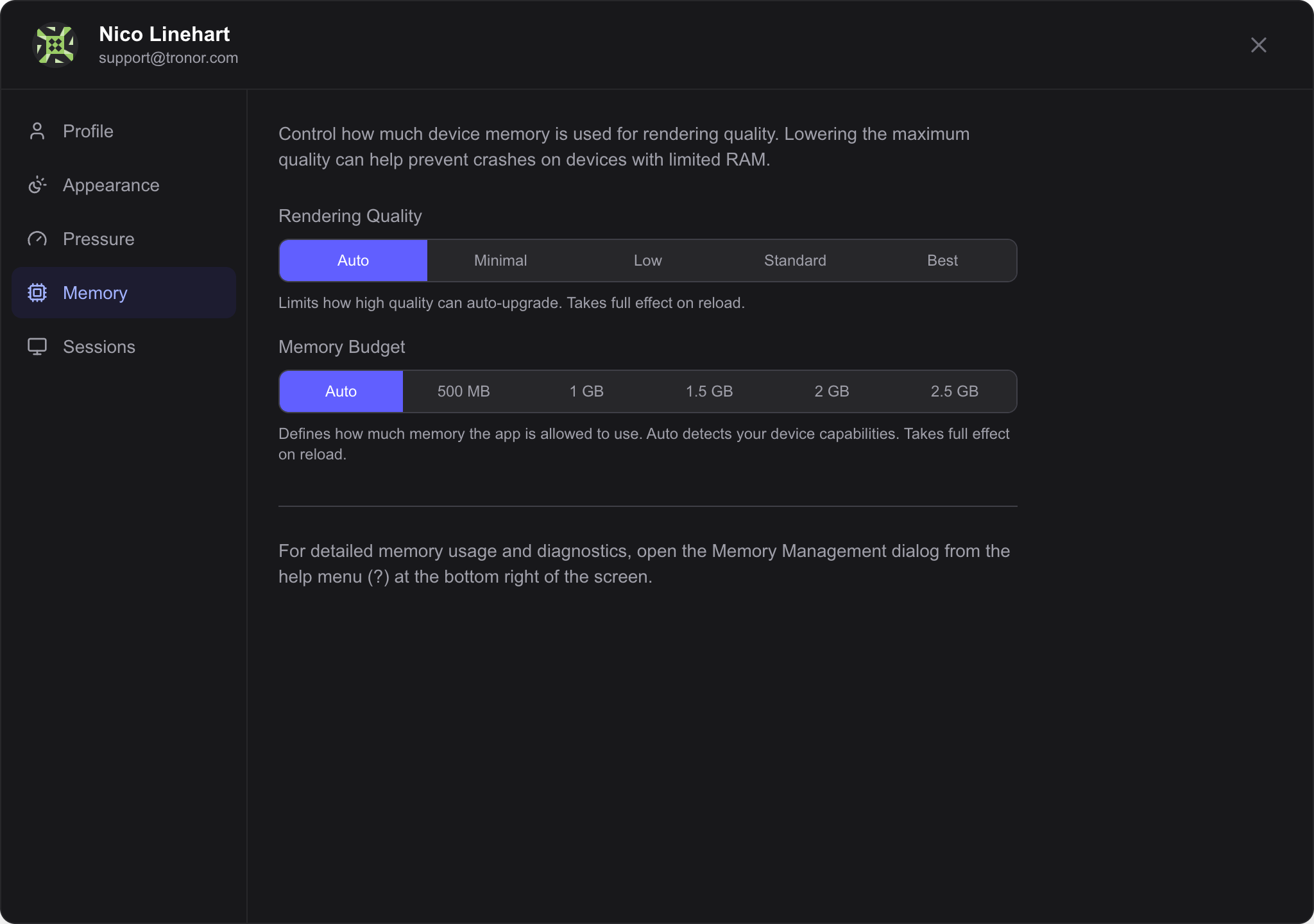
Adjust rendering quality and memory budget
Sessions
The Sessions tab lists all devices and apps where you are currently signed in. Each session shows the app or browser name, IP address, and when it was last active.
- Your current session is highlighted and labeled Current
- For other sessions, use the menu to terminate them — this signs you out on that device
View and manage your active sessions across devices
Delete Account
At the bottom of the Profile tab, a Danger Zone section lets you permanently delete your account.
Before deleting your account, you must resolve any teams where you are the only administrator. The danger zone lists all teams you administer and highlights the ones that would be left without an admin. For each blocking team, you can either delete the team or transfer the admin role to another member.
When you click Delete your user, a confirmation dialog asks you to acknowledge that the action is permanent. After confirming, your account is marked for deletion and you are signed out. A confirmation email is sent to your email address.
Deleted accounts are retained for a limited period in accordance with our Privacy Policy before all data is permanently removed. During this period, signing up again with the same email address will reactivate your account.
Related
- Team Settings — manage team name, members, projects, and billing
- Scene — configure canvas background and appearance
- Memory Management — detailed memory usage and diagnostics