Shapes
Create geometric shapes rendered with the same brush engines as Drawing. Press G to switch to Shapes mode.
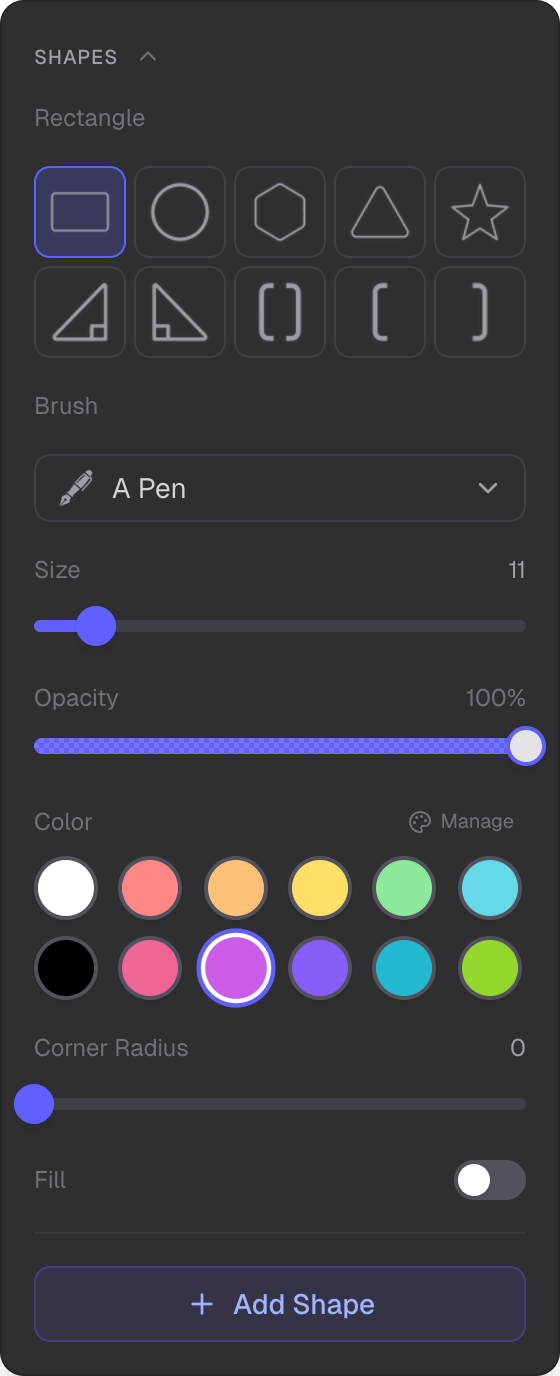
Shape type grid, brush selector, size/opacity/color controls, fill, and corner radius
Available Shapes
10 shapes in two categories:
Closed Shapes (with optional fill)
- Rectangle
- Circle
- Hexagon
- Isosceles Triangle
- Right Triangle
- Left Triangle
- Star (5-pointed)
Open Shapes (no fill)
- Left Bracket
- Right Bracket
- Bracket Pair
Controls
- Shape type — icon grid to pick the shape
- Brush — dropdown to select any brush from the catalog (ink, vector effects, or raster)
- Size / Opacity — same as Drawing (raster brushes show radius, base opacity, and hardness instead)
- Color — 12-slot palette (see Color Management)
- Corner radius — 0 to 100, available for rectangles and triangles
- Fill — toggle and opacity slider (1–100%), only for closed shapes
Shared Brush Engines
Shapes use the same three rendering engines and the same over 60 brushes as Drawing and Lines modes. The brush dropdown in the Shapes panel shows the full brush catalog. The selected brush determines which engine renders the shape outline:
- Ink — resolution-independent vector mesh strokes (WASM). Shapes stay crisp at any zoom level.
- Vector effects — animated effects like Fire, Neon, Electric applied along the shape outline
- Raster — texture-based brushlib strokes for natural media textures
Fill
Closed shapes can have a solid fill under the brush outline. The fill uses the stroke color at a separate opacity level. Open shapes (brackets) do not support fill. When fill is off, clicks pass through the interior of the shape to objects behind it.
Corner Radius
Rectangles and triangles support corner rounding from 0 (sharp corners) to 100 (maximum rounding). When corner radius is 0, each edge is rendered as a separate stroke segment so corners stay sharp. With rounding, the shape follows a continuous arc path.
Editing Shapes
Select a shape to open the edit panel. You can change the brush, size, opacity, color, corner radius, and fill. The shape type cannot be changed after creation. Lock or unlock the shape position and size, or delete it from the edit panel.
Related
- Drawing — the brush engines used for shape rendering
- Color Management — palettes, Copic colors, and eyedropper
- Lines — straight lines and curves with the same brush engines
- Selection — select, resize, and rotate shapes