Eraser
Remove objects from the canvas with filtering by type, lock state, and layer. Press E to switch to Eraser mode.
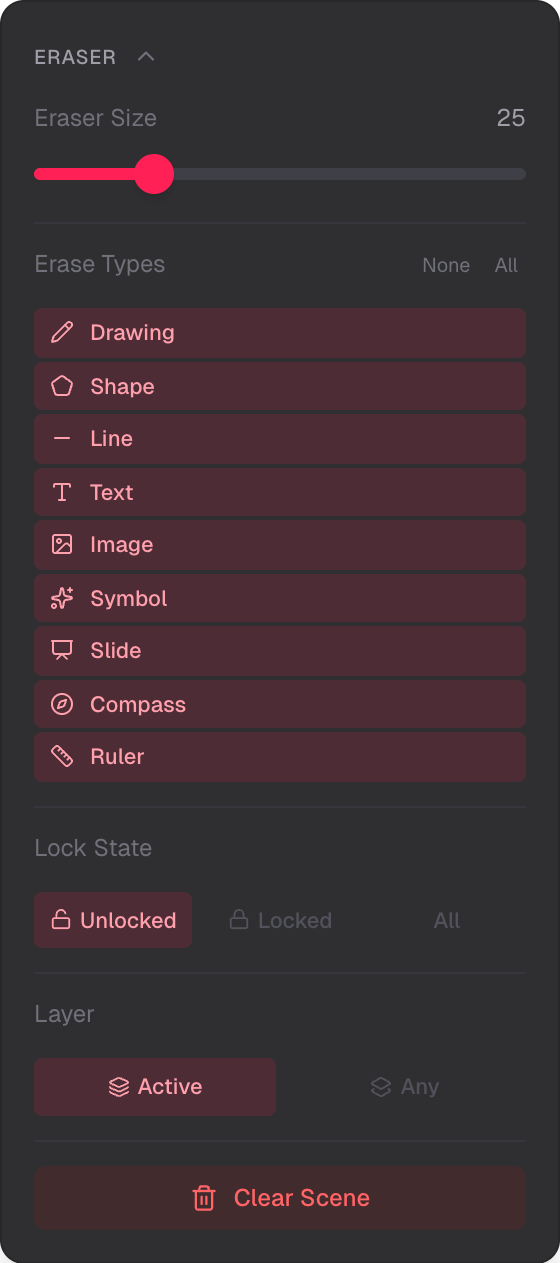
Eraser size, type filters, lock filter, layer filter, and Clear Scene
Object-Based Eraser
The eraser removes whole objects, not pixels. Move across the canvas to erase any objects that touch the eraser area. A red ring on the canvas shows the eraser radius as you move.
Eraser Size
Adjust the eraser radius from 1 to 100 (default 25). A larger eraser makes it easier to hit small objects.
Type Filtering
Choose which object types the eraser affects. Toggle individual types on or off, or use the None and All buttons:
- Drawing (raster, vector, and ink strokes)
- Shape
- Line
- Text
- Image
- Symbol
- Slide
- Compass
- Ruler
Lock State Filtering
Filter by lock state:
- Unlocked — only erase unlocked objects (default)
- Locked — only erase locked objects
- All — erase regardless of lock state
Layer Filtering
Filter by layer:
- Current layer — only erase objects on the active layer (default)
- Any layer — erase objects on any layer
Objects on layers with zero opacity are always skipped.
Clear Scene
The Clear Scene button deletes all objects matching the current type, lock, and layer filters. A confirmation dialog appears before anything is removed. If all filters are set to their widest settings (all types, all lock states, any layer), the entire scene is cleared in one operation.