Scene
Scene mode is for canvas navigation and scene settings. Press H to switch to Scene.
Video Walkthrough
Learn how to customize the canvas in T-Sketch — background colors, palettes, pickers, static grids, animated effects, and image textures.
Scene panel
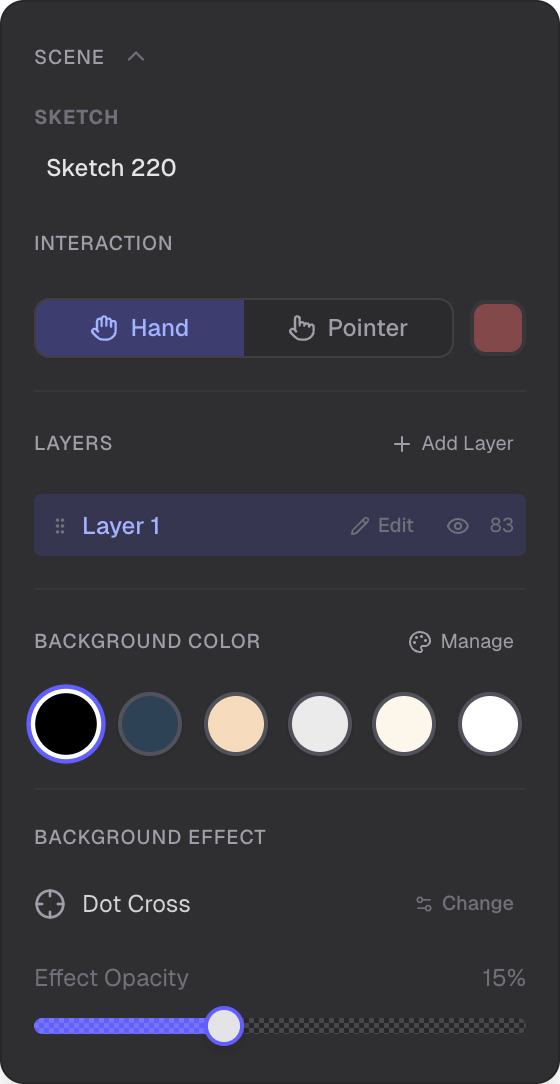
Interaction tools, layers, background color, and background effects
The Scene panel has two interaction tools — Hand and Pointer — and sections for managing layers, background color, and background effects.
Hand
Hand is the default interaction in Scene mode. Left-click and drag anywhere on the canvas to pan the view. The cursor shows a grab icon while panning. Middle-click and right-click also pan the canvas.
You can pan from any tool by holding Space and dragging. This temporarily activates Hand behavior without leaving your current tool.
Pointer
Pointer turns your cursor into a laser pointer. Drag on the canvas to draw a fading trail that is visible to all collaborators in real time. The trail fades out automatically after a short delay.
When Pointer is active, a color swatch appears next to the toggle. Click it to choose a trail color from a 12-color palette. Pointer is also available during presentations.
Sketch Info
At the top of the Scene panel, the current sketch name and description are displayed. When you access a sketch through a shared link, a Viewer Link or Editor Link badge is shown. Click the sketch info to open sketch details where you can edit the name and description.
Layers
Layers let you organize objects into separate groups. Every sketch starts with a single default layer. Objects you create are placed on the active (selected) layer.
- Add layer — click the Add Layer button to create a new layer
- Reorder — drag layers up or down to change their stacking order
- Visibility — toggle the eye icon to show or hide a layer
- Properties — click Edit on the active layer to open its properties, where you can rename the layer, adjust opacity and saturation, or delete it
Each layer shows an object count badge so you can see how content is distributed.
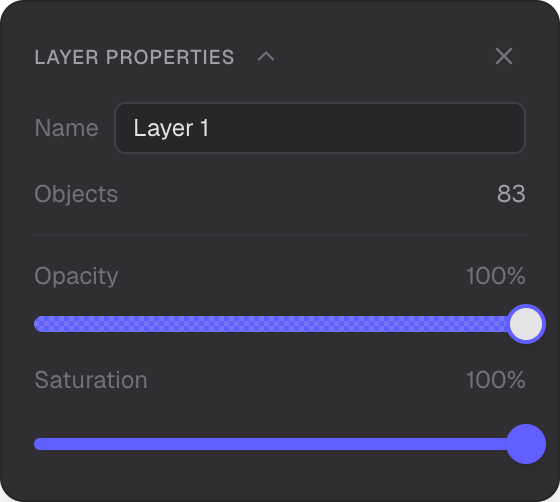
Rename, adjust opacity and saturation, or delete a layer
Background Color
A six-slot color palette lets you set the canvas background color with a single click. Double-click a slot to open the color picker. Use the Manage button to customize the palette.
Background Effects
T-Sketch offers 24 background effects organized into three categories. Click Change to open the effect picker dialog. When an effect is active, an opacity slider lets you adjust its intensity.
Static Patterns
Ten tiled patterns that overlay the canvas. They automatically adapt their color to work on both light and dark backgrounds:
- Dot Grid — regular dot pattern
- Grid Lines — horizontal and vertical lines
- Graph — square graph paper
- Graph 2x2 — graph paper with 2x2 subdivisions
- Graph 3x3 — graph paper with 3x3 subdivisions
- Graph 4x4 — graph paper with 4x4 subdivisions
- Crosses — cross/plus markers on a grid
- Dot Cross — combined dot and cross pattern
- Isometric — isometric line grid for 3D sketching
- Diamonds — diamond lattice pattern
Dynamic Effects
Five animated effects rendered in real time. Some suggest a background color when selected (for example, Starfield and Fireflies switch to a black background):
- Starfield — twinkling stars on a dark sky
- Aurora — flowing colored ribbon bands
- Fireflies — soft glowing points drifting on organic paths
- Rain — layered vertical rain streaks with depth
- Smoke — drifting fog
Picture Textures
Nine seamless tiled photographs. Each suggests a base background color when selected:
- Nebula — space nebula texture
- Perforated — punched surface
- Abstract — abstract texture
- Brown Paper — brown craft paper
- Grain Paper — textured grain paper
- Sprinkle — speckled surface
- Watercolor — watercolor paper
- Cloth — woven cloth
- Ivory Paper — off-white paper
Related
- Color Management — palettes, Copic colors, and eyedropper
- Selection — select and edit objects
- Drawing — draw with brushes
- Shapes — create shapes