Color Management
T-Sketch provides two color palettes — foreground for brush and object colors, and background for the canvas — along with a palette editor, preset palettes, and the Copic color wheel.
Foreground Palette
The foreground palette holds 12 color slots used for drawing, shapes, lines, text, and other object colors. It appears in mode panels that create content (Drawing, Shapes, Lines, Text, and more).
- Select a color — click any slot to set it as the active color
- Edit a slot — double-click a slot to open the palette editor for that color
- Quick keys — press
1through7to select the first seven palette colors
Background Palette
The background palette holds 6 color slots for the canvas background. It appears in the Scene panel. Click a slot to apply it as the canvas color. Double-click to edit.
Palette Editor
The palette editor opens as a side panel when you click Manage on any palette or double-click a color slot. It shows the full palette grid with the selected slot highlighted, an inline color picker for fine-tuning hue, saturation, and lightness, and action buttons at the bottom.
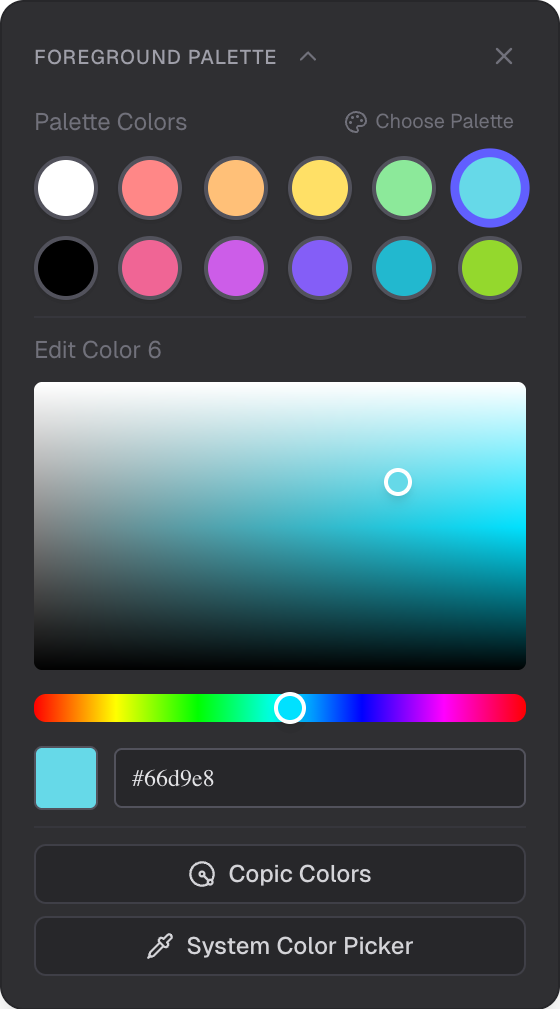
12 color slots, inline color picker, and Copic Colors / Pick Color actions
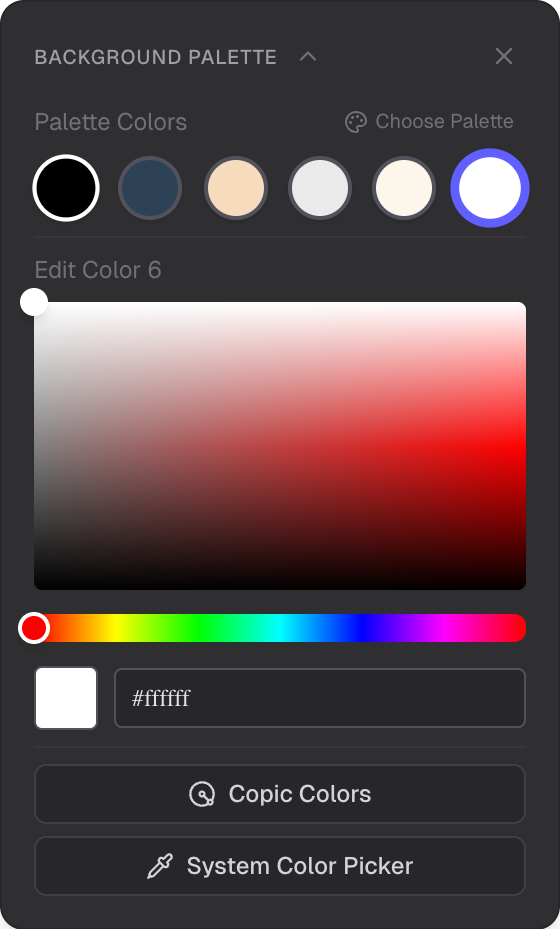
6 color slots for canvas background with the same editor controls
Preset Palettes
Click Choose Palette in the editor to browse curated color sets. Foreground presets are grouped into sets designed for dark backgrounds and sets designed for light backgrounds. Background presets offer a range of canvas color combinations. Applying a preset replaces all slots in the palette at once.
Pick Color (Eyedropper)
Click Pick Color to sample any color from the screen using the browser eyedropper. On browsers that do not support the EyeDropper API, a native color input opens instead.
Copic Colors
The Copic color wheel is a full-screen dialog that lets you browse all 358 colors from the Copic marker system. Colors are arranged on an interactive SVG wheel organized by family (Red, Yellow Red, Yellow, Yellow Green, Green, Blue Green, Blue, Blue Violet, Violet, Red Violet, Earth, and Fluorescent).
- Hover any swatch to see its code, name, and hex value
- Gray, achromatic, and fluorescent families are in the center of the wheel
- Click Search by name to find colors by text
- Select a color and click Apply to set it in the active palette slot
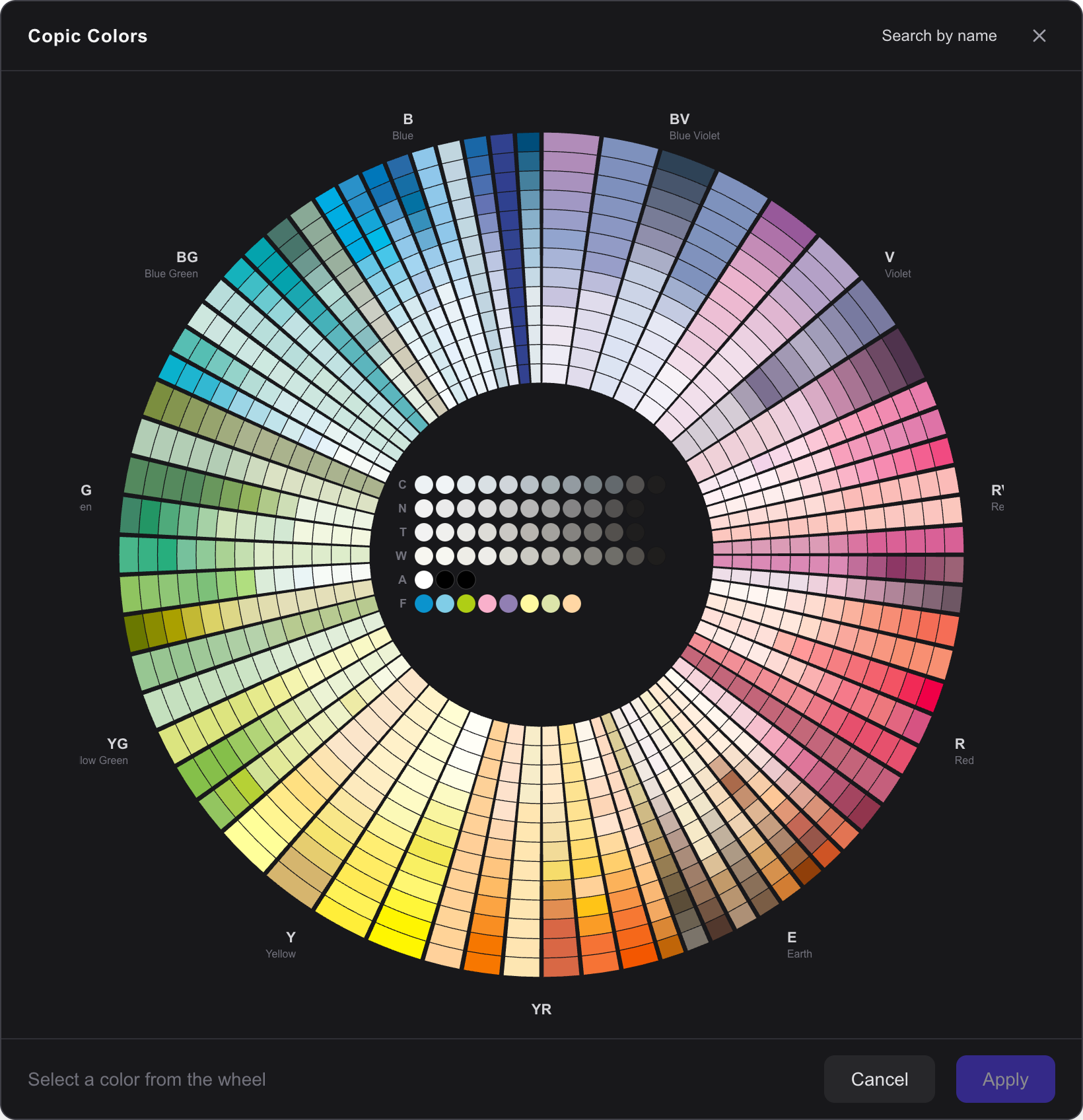
Interactive SVG wheel with 358 marker colors organized by family
Per-Brush Color Memory
Each brush remembers its own color, size, and opacity independently. When you switch between brushes, the last color you used for that brush is restored automatically. This lets you assign different colors to different tools and switch without losing your settings.