Drawing
Drawing is the core feature of T-Sketch — a unified drawing system with over 60 brushes across three engines. Press D to switch to Drawing mode.
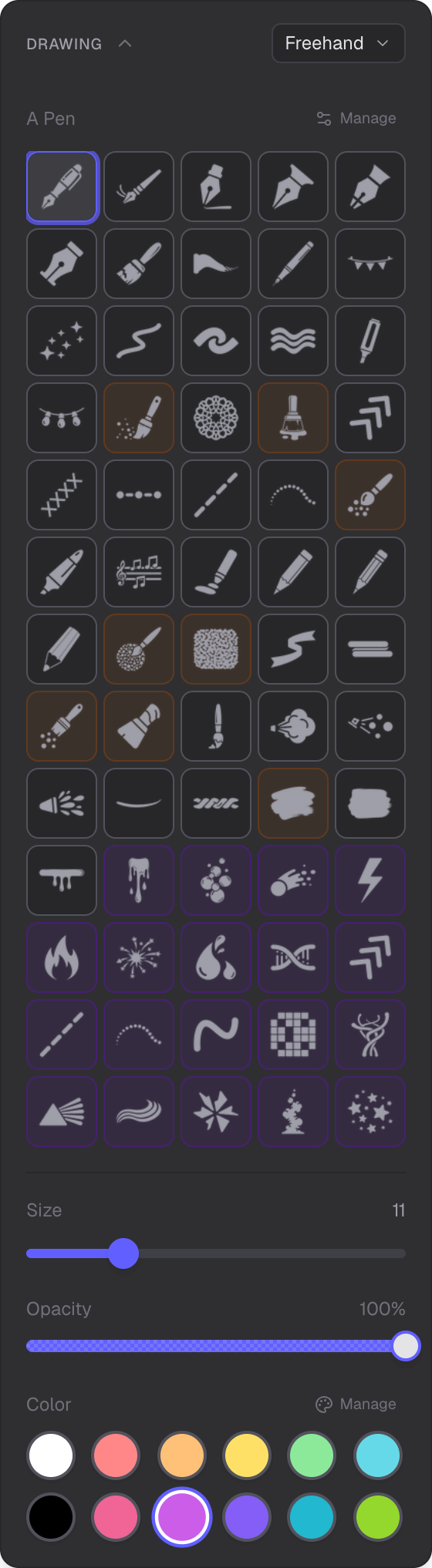
Brush grid, size/opacity controls, color palette, and constraint mode
Three Brush Engines
Every stroke uses one of three rendering engines based on the selected brush. All brushes appear in a single grid — no need to switch sub-modes.
1. Ink Brushes
About 40 resolution-independent brushes rendered as triangle meshes via a C++ vector engine compiled to WASM. Strokes stay crisp at any zoom level.
- Writing & Pens — Marker, Pressure Pen 1 & 2, Pen, Fine Liner, Highlighter
- Pencils — Pencil 1, 2, and 3 (from light 2B to bold 8B)
- Calligraphy — Calligraphy 1, 2, and 3 (Calligraphy 3 responds to stylus tilt)
- Spray & Airbrush — Spray 1 (soft airspray), Spray 2 (scattered particles), Spray 3 (feathered splashes)
- Art & Watercolor — Soft Brush, Watercolor Wash, Charcoal, Wet Paint
- Line Patterns — Dashed, Dotted, Arrowhead, Dash-Dot, Crosses (some with animated variants)
- Stroke Effects — Taper, Fade Tail, Gradient Stroke, Pastel Pressure, Glitter
- Decorative — Ribbon, Flag Banner, Graffiti, Groovy, Holiday Lights, Lace, Music, Shadow, Twisted Yarn
2. Animated Vector Effects
16 animated effect types. Most support color customization; Fire uses an internal gradient.
- Helix, Fire, Smoke, Comet, Electric, Bubbles
- Neon, Stars, Shatter, Fluid, Plasma, Pixelate
- Rainbow, Ripple, Blood, Fireworks
3. Raster Brushes
8 texture-based brushes powered by the brushlib (MyPaint) engine. These produce bitmap strokes with natural media textures.
- Watercolor — Watercolor Expressive, Large Watercolor Fringe
- Texture — Smudge, Pointillism 1 & 2, Impressionism
- Nature — Short Grass, Long Grass
Controls
Ink and Vector Brushes
- Size — adjustable within per-brush min/max range
- Opacity — whole-stroke transparency (0 to 1)
- Color — 12-slot palette with inline editing (see Color Management)
Raster Brushes
- Radius — logarithmic brush radius
- Base Opacity — per-dab opacity
- Hardness — edge softness (0 = soft, 1 = hard)
- Opacity — whole-stroke transparency
- Color — same 12-slot palette
Constraint Modes
A dropdown in the panel header lets you snap strokes to fixed angles:
- Freehand — no constraint (default)
- 90° — horizontal and vertical lines
- 60° — 60-degree increments (isometric grids)
- 45° — 45-degree increments
Manage Brushes
The Manage button below the brush grid opens the Manage Brushes dialog. You can show or hide individual brushes to customize which ones appear in the grid, and restore defaults at any time.
Keyboard Shortcuts
D— switch to Drawing mode[/]— decrease / increase brush size1through7— select palette colors 1–7
Magic Stroke
Hold the pen or mouse still for 1 second at the end of a stroke. A pulsing ring appears, followed by a context menu with conversion options:
- Ink and Vector strokes — Rectangle, Circle, Triangle, Line, Arrow, Text, Symbol, Image
- Raster strokes — Text, Symbol, Image (shapes and lines are not available for raster)
Select an option to convert the stroke into that object type. Press Esc or click outside to cancel.
Vector Only Mode
When zoomed out significantly, raster brushes are disabled automatically and a badge appears. At very low zoom levels, only vector effects and ink brushes are available. This keeps strokes crisp at any zoom.
Per-Brush Settings
Each brush remembers its own size, opacity, and selected color independently. Switching between brushes restores the last-used settings for that brush, including raster-specific settings (radius, hardness, base opacity).
Pressure & Tilt
Pressure-sensitive brushes respond to stylus pressure for stroke width and opacity variation. Calligraphy 3 additionally responds to stylus tilt angle. Pressure Pen 2 works with finger and mouse input by using a default medium weight when no pressure is reported.
Related
- Color Management — palettes, Copic colors, and eyedropper
- Scene — navigate and manage the scene
- Selection — select and edit objects
- Shapes — create shapes with the same brush engines