Images
Add images to the canvas with recolor and invert effects. Press I to switch to Images mode.
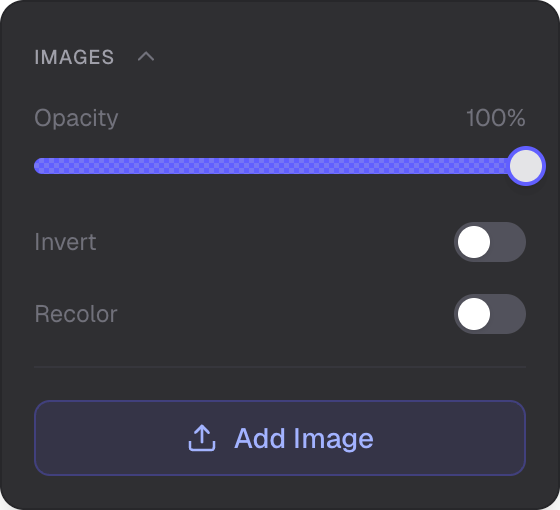
Upload button, opacity, invert, recolor, and color palette
Supported Formats
- PNG
- JPEG
- GIF
- WebP
Adding Images
- Add Image button — opens a file picker in the Images panel
- Drag and drop — drag image files onto the canvas from your file manager
- Paste —
Ctrl/Cmd + Vto paste images from the clipboard
Panel Controls
- Opacity — control image transparency
- Invert — toggle color inversion (useful for adapting icons to dark backgrounds)
- Recolor — toggle tinting the image with a palette color
- Color — 12-slot palette to set the recolor tint (see Color Management)
Editing Images
Select a placed image to open the edit panel. You can adjust opacity, toggle invert and recolor, change the recolor tint, replace the image with a new upload, lock or unlock position and size, or delete it.
Related
- Color Management — palettes and color selection
- Selection — select, resize, and rotate images
- Text — add text with inline image attachments
- Symbols — add vector icons to the canvas