Symbols
Search and place vector icons on the canvas with automatic recoloring. Press S to switch to Symbols mode.
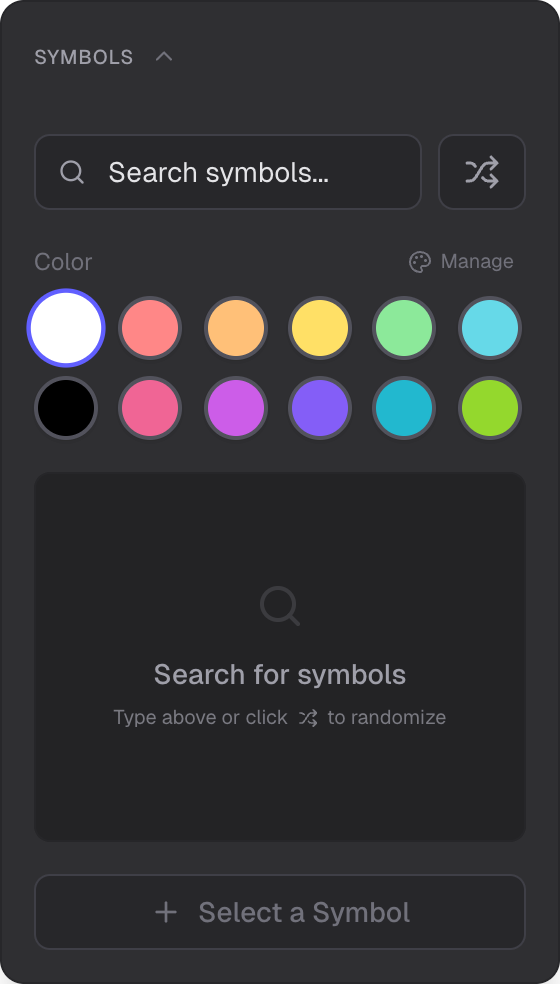
Search field, color palette, and symbol results grid
Semantic Search
Type a description to find relevant symbols. Search is powered by AI-based semantic matching (Pinecone vector search), so you can search by meaning rather than exact names — for example, searching "celebration" finds confetti, balloons, and party icons.
Randomize
Click the shuffle button next to the search field to fill in a random search phrase and discover symbols you might not have thought to look for.
Auto-Recolor
Symbols are automatically recolored to match your selected palette color when placed on the canvas. The recolor effect converts the symbol to grayscale and tints it with your chosen color. You can change the color at any time from the edit panel.
Panel Controls
- Search — text input with AI-powered semantic matching
- Randomize — shuffle button for random search phrases
- Color — 12-slot palette to set the recolor tint (see Color Management)
- Results grid — 3-column grid of matching symbol previews
- Add Symbol — place the selected symbol on the canvas
Editing Symbols
Select a placed symbol to open the edit panel. You can change the recolor tint, adjust opacity, lock or unlock position and size, or delete it. Symbols also support color inversion by default for better visibility on dark backgrounds.
Related
- Color Management — palettes and color selection
- Selection — select, resize, and rotate symbols
- Images — add raster images to the canvas