Measurements
Measurements lets you place visual markers and measure distances on your canvas. Press M to activate.
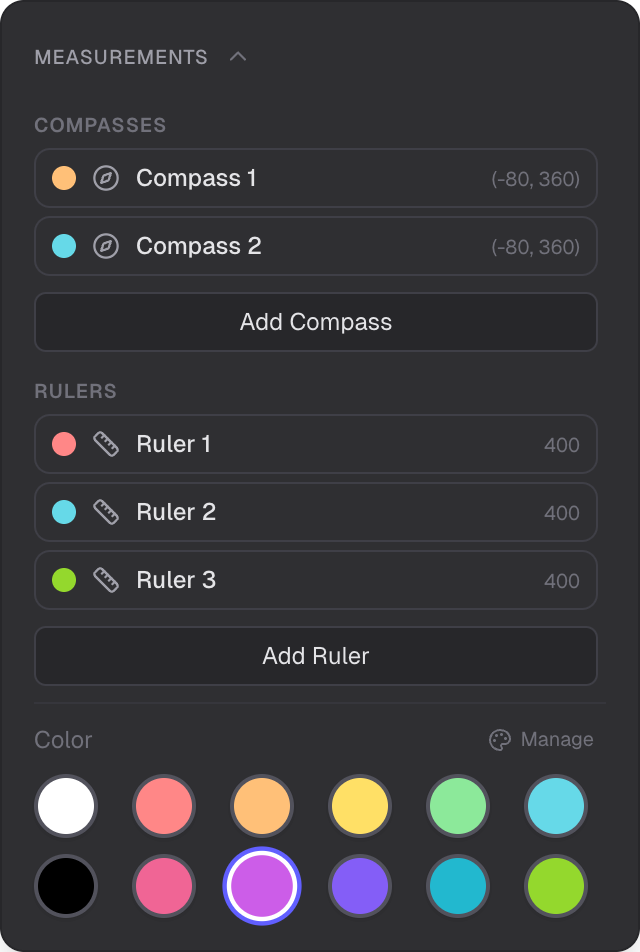
Compass and ruler objects with creation buttons
Compass
A compass is a point marker that displays its world-space coordinates. Place one anywhere on the canvas to see the exact position. You can give each compass an optional name label, choose a color, and set the arrow direction (pointing up or toward the origin).
Ruler
A ruler draws a straight line between two points with tick marks at regular intervals. Minor ticks mark smaller increments and major ticks mark larger ones. The total distance is displayed along the ruler. You can customize tick spacing and color.
Adding Objects
The Measurements panel lists all compass and ruler objects in the scene. Use the Add Compass and Add Ruler buttons at the bottom to create new measurement objects at the current viewport center.
Scene Dimming
When Measurements is active, non-measurement content fades so your markers and rulers stand out clearly. This is similar to how slide frames become prominent in Slides.
Properties
Select a compass or ruler to see its properties panel on the right side. For compasses, you can edit the name, color, and direction. For rulers, you can adjust tick spacing and color. Both support locking and deletion.