Overview Mode
Overview Mode is for navigation and scene management. Press S to switch to Overview Mode.
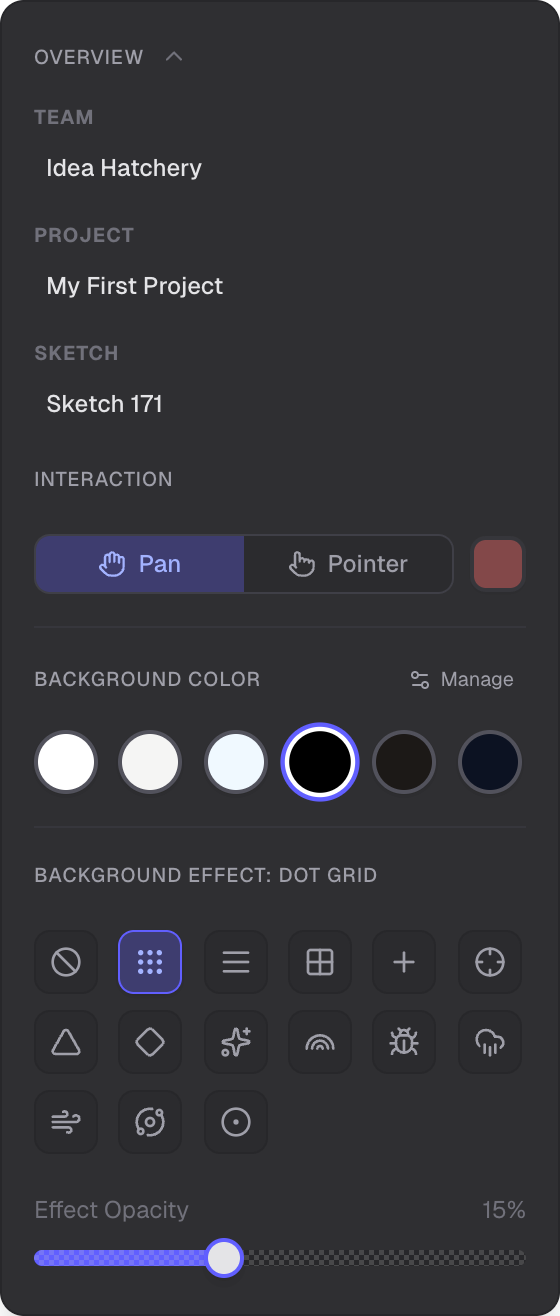
Camera controls, background settings, and scene metadata
Pan Tool
The pan tool is the default tool in Overview Mode. Left-click and drag anywhere on the canvas to pan the view.
Camera Controls
- Reset View — return the camera to the default position and zoom
- Full Scene — zoom to fit all content on the canvas
Appearance
T-Sketch supports light and dark interface modes. The Appearance switcher in the Scene panel lets you choose how the surrounding UI (toolbar, panels, menus) looks while you work:
- Light — white panels and dark text, ideal for working on light-colored canvases or in bright environments
- Dark — dark panels and light text, comfortable for working on dark canvases or in low-light conditions
- Auto (default) — the interface automatically adapts to your canvas background color. Pick a dark background and the UI switches to dark mode; pick a light background and it switches to light mode. This keeps the UI visually cohesive with your canvas at all times
Background
The Scene panel lets you customize what your canvas looks like:
- Background color — use the color picker or palette to set the base background color. In Auto appearance mode, this also determines whether the interface uses light or dark styling
- Background effects — choose from 12 animated atmospheric effects: Stars, Living Gradient, Ocean, Dark Plasma, Caustics, TV Noise, Deep Fog, Lava Blobs, Sun Beams, Hex Grid, Bokehs, or None
Tiled Background Patterns
Add a grid overlay to your canvas. Patterns auto-adapt their color to the background:
- Grid Lines — ruled paper style with horizontal lines
- Grid Squares — graph paper style with a full grid
Metadata Display
The metadata panel shows your current context: Team, Project, and Sketch info.
Pointer Mode
Pointer mode enables laser pointer trails for collaboration on touch devices. Trails fade after 2 seconds and are visible to all collaborators. You can select the trail color.
Rotation Widget
The rotation widget in the toolbar displays the current camera angle. Click it to open the rotation panel with a spinning wheel for precise control, quick-set buttons at 0/90/180/270 degrees, a degree input field, and a rotation lock toggle.
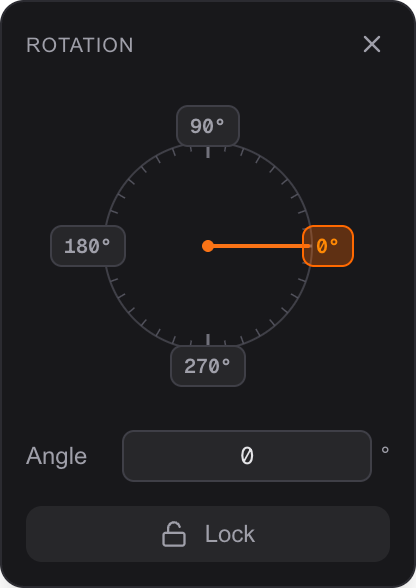
Spinning wheel, quick-set angles, degree input, and rotation lock
Compass Widget
The compass widget shows your direction from the origin using 16-point compass abbreviations (N, NE, E, etc.). When the origin is visible, it shows "CTR". Click it to open the location panel with a minimap for quick navigation.
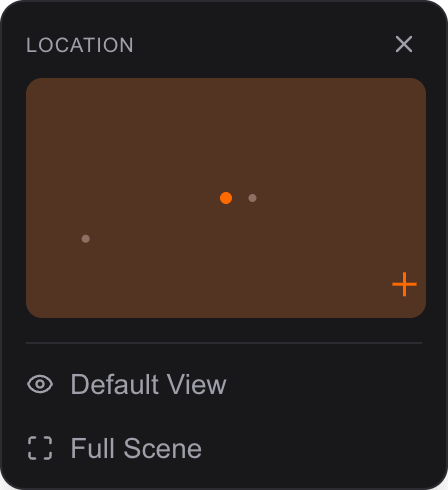
Minimap showing object positions and viewport indicator
Related
- Selection Mode — select and edit objects
- Drawing Mode — draw with brushes
- Shapes Mode — create shapes