Eraser Mode
Eraser Mode lets you remove objects from the canvas. Press E to switch to Eraser Mode.
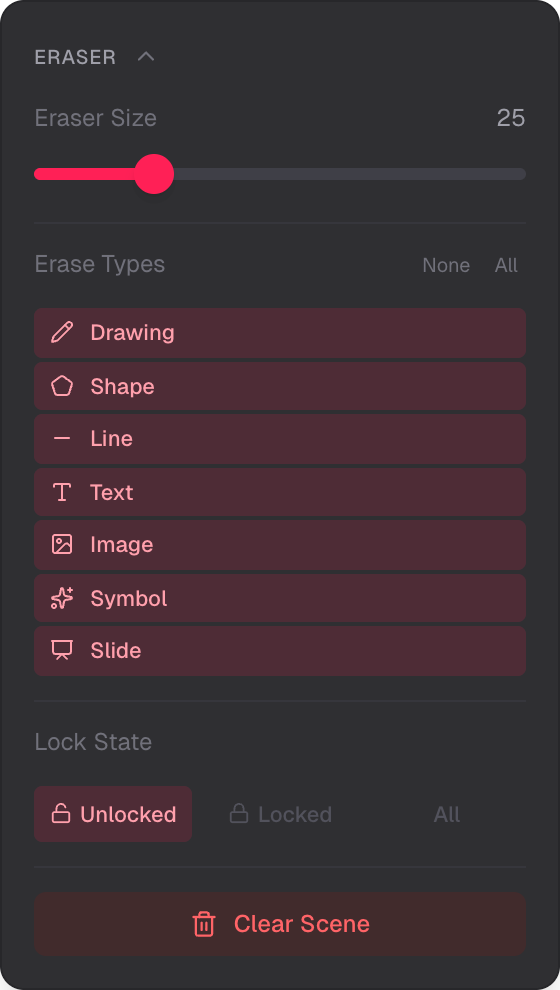
Smart eraser with type and lock filtering
Smart Eraser
The eraser is object-based, not pixel-based. Touch objects to erase them — it removes whole objects, not parts of them.
Visual Indicator
A world-space ring shows the eraser area on the canvas. The circle moves with your cursor so you always see what will be erased.
Type Filtering
Choose which object types the eraser affects. Each type can be toggled on or off:
- Drawing
- Shape
- Line
- Text
- Image
- Symbol
- Slide
Lock State Filtering
Filter by lock state: erase only unlocked objects, only locked objects, or all objects regardless of lock.
Clear Scene
The eraser panel has a Clear Scene button that deletes all objects matching the current filters. A confirmation dialog appears before anything is removed.
Eraser Size
Adjust the eraser size to control how large the touch area is. A larger eraser makes it easier to hit small objects.
Related
- Selection Mode — select and delete objects individually
- Slides Mode — create and manage slides