Slides Mode
Slides Mode lets you create presentation slides directly on your infinite canvas. Press K to switch to Slides Mode.
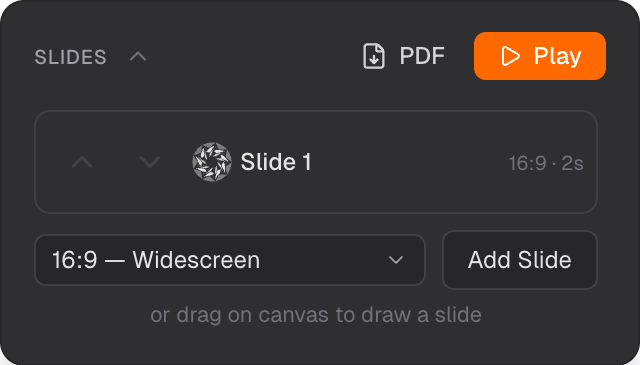
Slide thumbnails, ordering, and presentation controls
Aspect Ratios
Each slide is a framed region of the canvas. Choose between 16:9 or 16:10 aspect ratios.
Slide Frames
Each slide is a framed region of the canvas. Content inside the frame becomes the slide. Add drawings, shapes, text, and images within the frame.
Slide Panel
The slide panel on the left shows thumbnails of all slides in order. Use it to see your presentation at a glance.
Reorder Slides
Drag thumbnails in the slide panel to reorder slides. The order defines how your presentation flows.
Slide Details Panel
When you select a slide, the slide details panel appears. From here you can:
- Rename the slide
- Export the slide as an image
- Delete the slide
Connector Lines
Connector lines between slides help visualize the presentation flow. They show how slides connect in sequence.
Layer Order
Slides render below other objects so your content stays on top. Your drawings and shapes always appear above the slide frames.
Start Presentation
Use the Start Presentation button to launch fullscreen presentation mode. See Presentation Mode for details.
Export Slides
Export individual slides as images from the slide details panel. Use this to share slides or use them in other tools.
Related
- Presentation Mode — present your slides fullscreen
- Overview Mode — navigate the canvas